
Have you ever found a headline interesting at a moment when you didn’t have time to read the whole article?
You’re scrolling the newsletter between appointments, or five minutes out from an open home, and something lands that’s actually worth thinking about.
A leadership idea you’d want to take into Monday’s meeting. A workflow you’d genuinely test if you had twenty minutes. So you leave the tab open. And then, eventually, you close the tab.
Elite Agent has designed a new feature called Saved Articles to fix that.
It’s live now across EliteAgent.com, and it’s free with a My Elite Agent account.
How it works
On any Elite Agent story, hit Save article next to the sharing buttons.
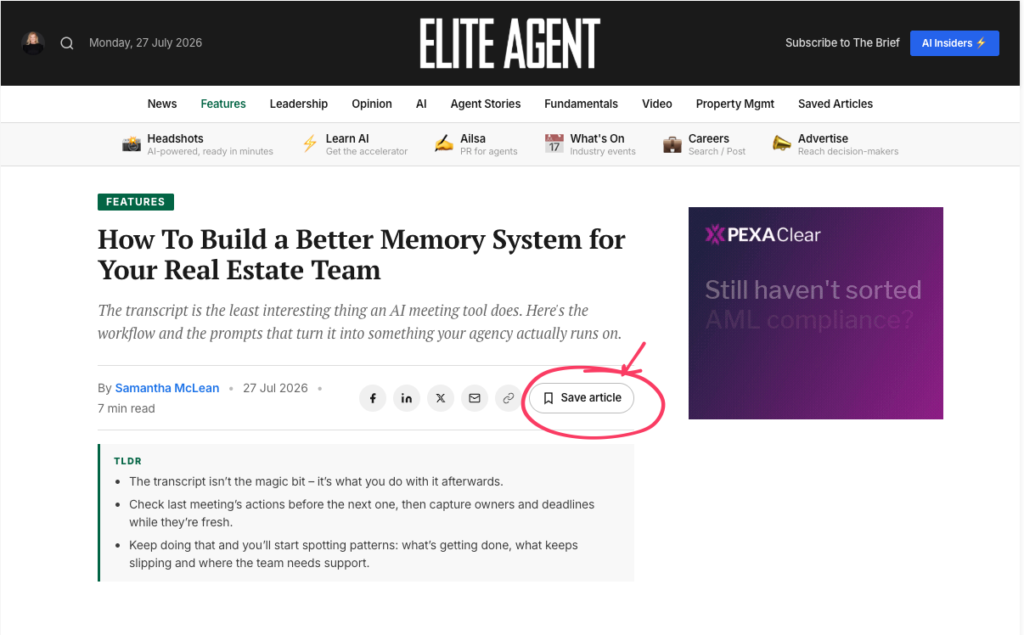
If you’re already signed in, that’s it. It’s in your library.
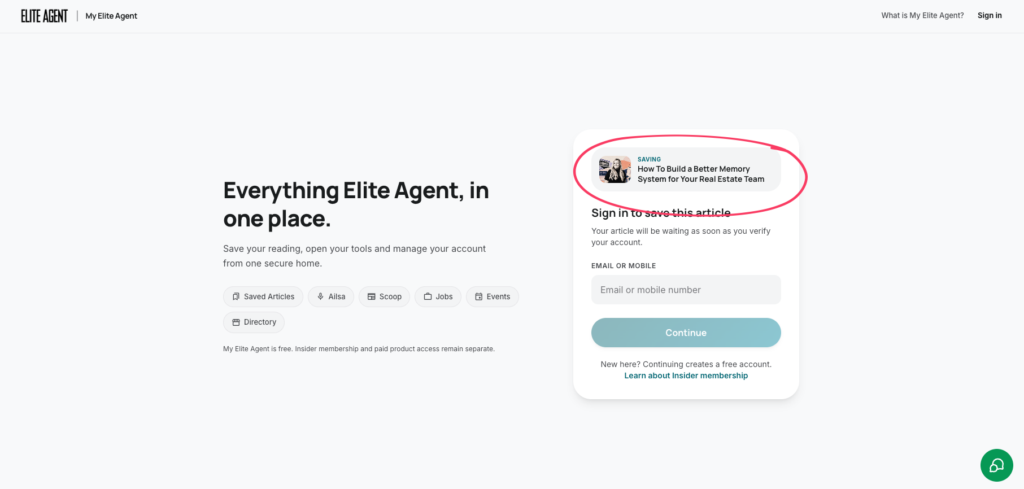
If you’re not, you’ll go across to My Elite Agent to sign in or create a free account using a one-time code sent to your email or mobile. The story you were reading saves itself while you do that, then drops you back where you left off with a confirmation. You don’t have to go hunting for it again or hit Save a second time.
It works the same way on mobile and desktop, including when you keep scrolling into the next story through the article feed.
Your own reading list
Saved stories live in My Elite Agent → Saved Articles, newest first, each one keeping its headline, image, summary and original EliteAgent.com link.
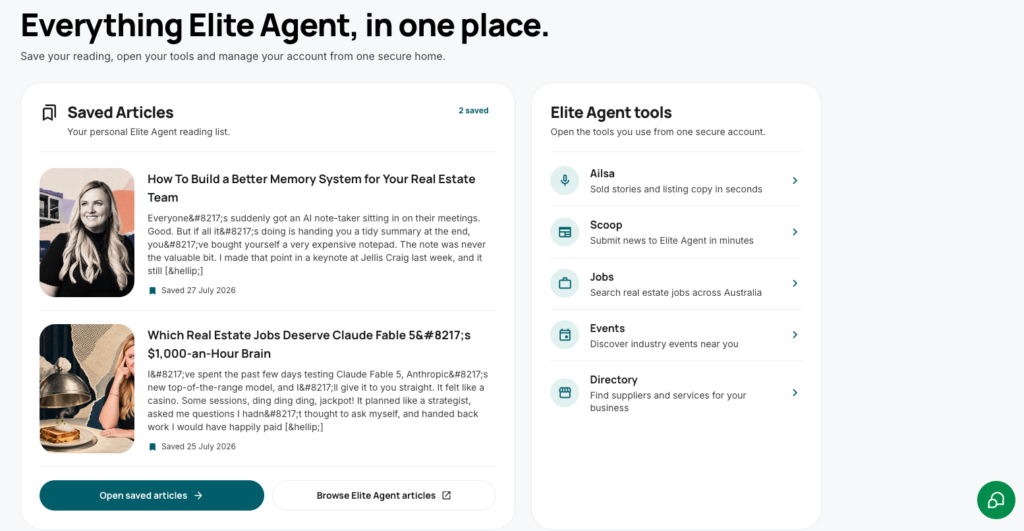
Search the library by title or keyword. Open something when you’ve actually got the time for it. Delete what you’re finished with. Save the same story twice and you’ll still only have it once.
Which makes it more useful than a catch-up pile. It becomes a working collection: ideas to bring to a team meeting, references for a planning session, the article you want to put in front of someone who needs to read it.
“I often see things in newsletters that I want to come back to,” said Samantha McLean, Elite Agent Managing Editor.
“My Elite Agent now lets our readers do exactly that. It’s a bit like creating your own personal magazine,” she said with a nod to the Elite Agent’s history.
“There has never been a better time to be innovating in publishing – and real estate”
Browse Elite Agent stories and hit Save article, or go straight to your Saved Articles library.
(look below for a second save button!!)